spotify canvas maker
spotify canvas maker
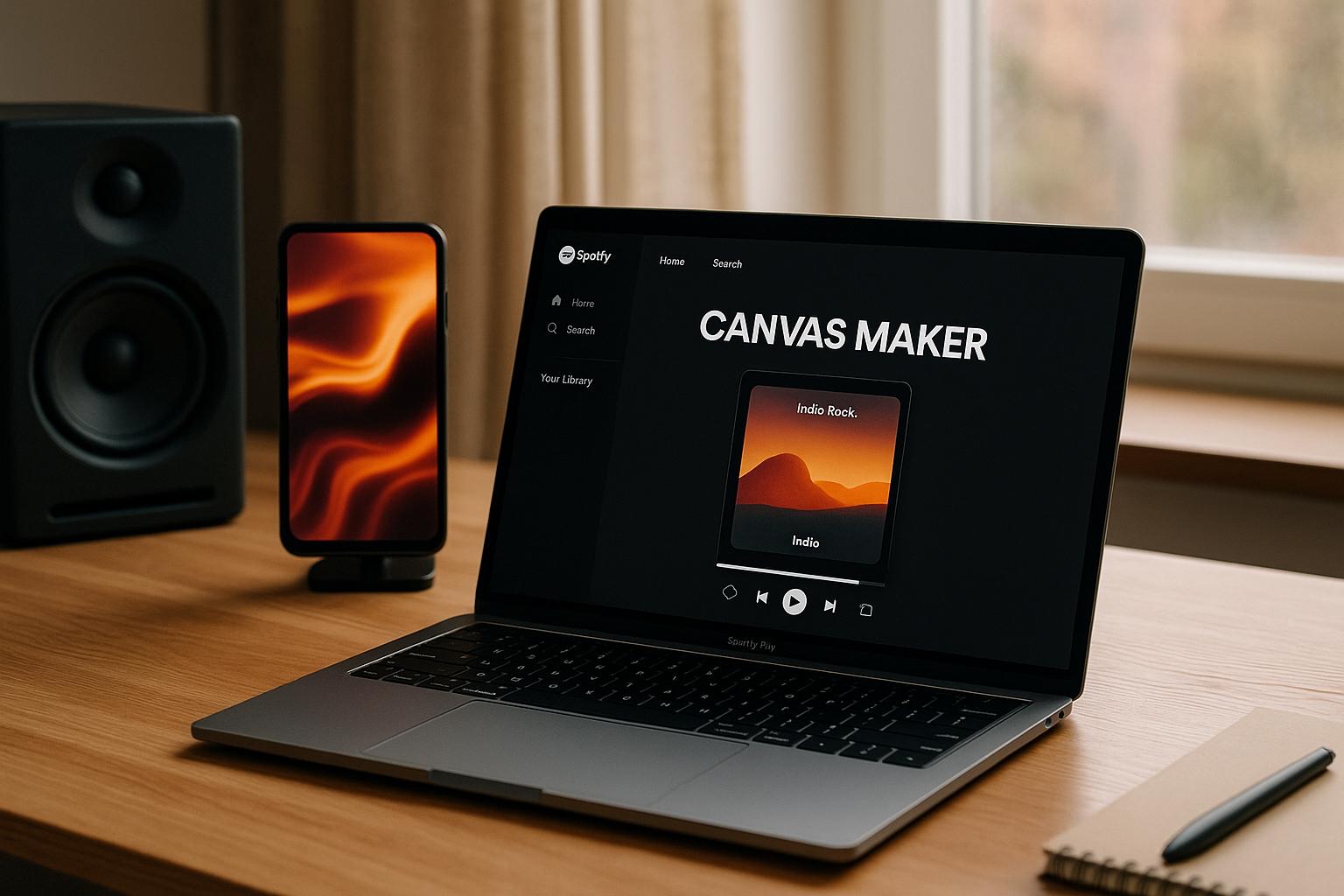
Spotify Canvas transforms static album art into an engaging 3-8 second vertical video loop displayed in Spotify's Now Playing view on mobile devices. This feature helps musicians connect with listeners visually, boosting shares, saves, and stream time. To create a Canvas, follow Spotify's guidelines for video specs (9:16 aspect ratio, MP4 format, 720x1280 resolution minimum) and avoid adding text or audio elements.
Here's how to get started:
- Set up a Spotify for Artists account: Claim your profile at artists.spotify.com and verify your identity.
- Prepare visual assets: Use high-resolution images or video clips that match your music's vibe. Keep key visuals in the center to avoid cropping.
- Create your Canvas: Tools like Vibedrop simplify the process, letting you design and export videos ready for Spotify.
- Upload to Spotify: Log into Spotify for Artists, select your track, and add your Canvas.
Whether repurposing music video clips or designing fresh visuals, Spotify Canvas is a quick way to make your music more visually appealing and shareable.
How to Easily Make a Seamlessly Looping Spotify Canvas Using iMovie
Getting Ready to Create Your Spotify Canvas
Before diving into creating your Spotify Canvas, it’s essential to lay the groundwork and gather the materials that best reflect your music. Start by setting up your Spotify for Artists account, as this will allow you to upload your Canvas videos.
Setting Up Your Spotify for Artists Account
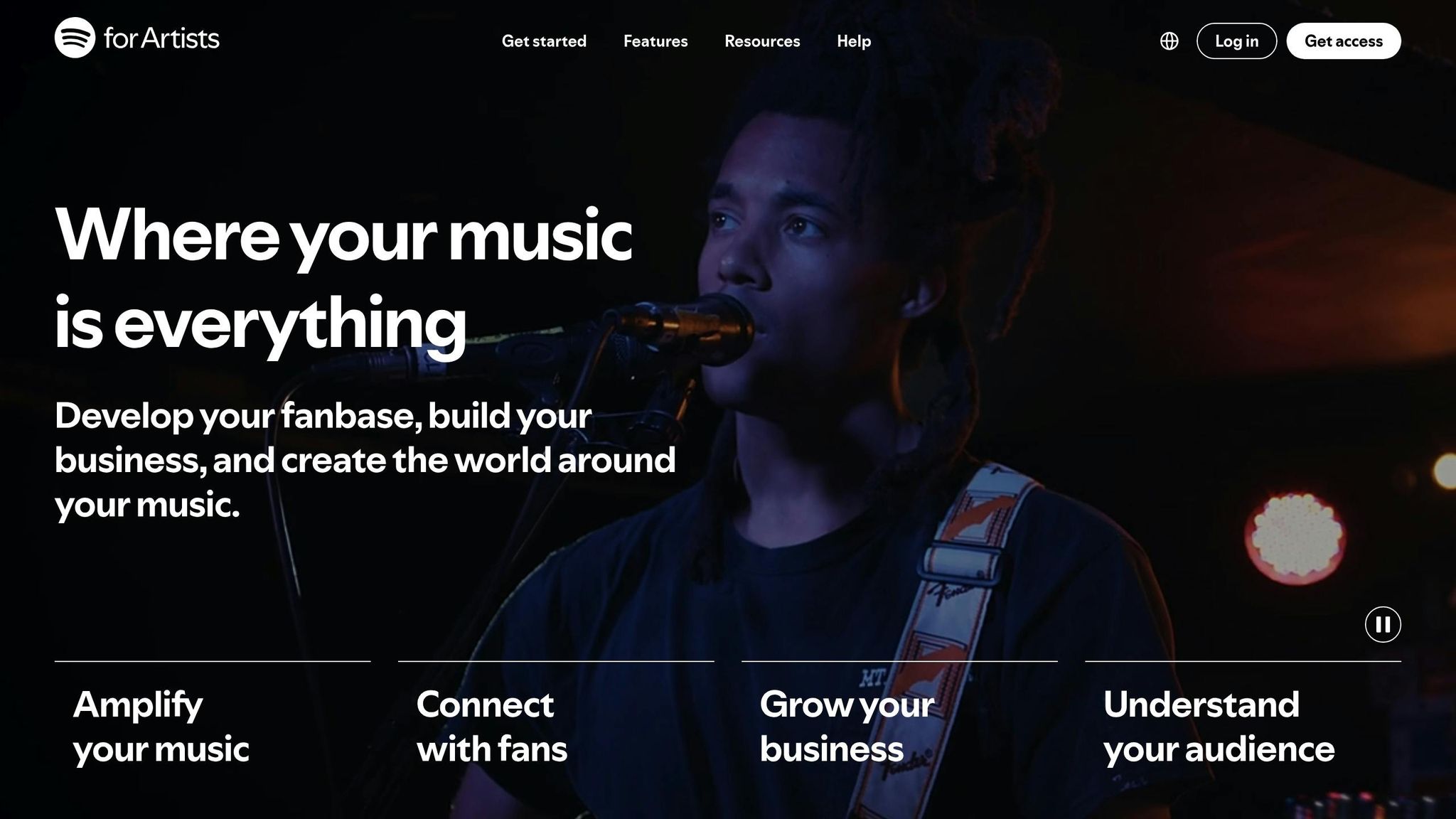
Your Spotify for Artists account is your ticket to uploading Canvas videos. Without it, you won’t be able to access this feature.
Head over to artists.spotify.com to claim your profile. You’ll need to verify your identity as the artist (or as someone authorized to manage the account). Keep in mind, Spotify requires you to have at least one song already distributed through platforms like DistroKid, CD Baby, or TuneCore.
The verification process usually takes 24–48 hours. Once approved, you’ll unlock tools like streaming analytics, playlist submissions, and, of course, the Canvas upload feature.
Take a moment to complete your profile. Add a compelling bio, a clear profile photo, and a header image to build a strong visual identity for your music.
If you’re working with a team, access permissions are important. You can grant different levels of access to band members, managers, or marketing professionals. To upload Canvas videos, admin or editor permissions are required, so make sure the right people on your team can manage this aspect of your account.
Collecting Your Visual Assets
Once your account is ready, the next step is gathering the visuals that will shape your Canvas. High-quality visuals are key since Canvas videos display on a range of mobile devices.
Start with your album artwork and promotional photos. These should be at least 3,000 x 3,000 pixels if you’re planning to animate them. Low-resolution images can look blurry or pixelated when scaled to Canvas dimensions, especially on high-resolution screens.
Adding video footage can bring your Canvas to life. You can repurpose clips from music videos, behind-the-scenes moments, or live performances. The trick is choosing segments that loop smoothly and match the vibe of your track without overshadowing the music.
Think about your brand colors and visual style. Your Canvas should feel like an extension of your artistic identity. If your album artwork features specific colors or themes, try weaving those elements into your Canvas to maintain a cohesive look.
While stock footage and graphics can complement your original content, choose them carefully. Avoid generic visuals that don’t align with your music. Instead, pick elements that genuinely resonate with the mood or story of your track.
Keep in mind how lighting and contrast affect mobile viewing. Fans might see your Canvas in bright daylight or dimly lit spaces, so use high-contrast visuals with clear focal points. Subtle, low-contrast images can get lost on smaller screens.
To stay organized, sort your assets by song. This will make it easier to create and update your Canvas videos. Always keep the original, unedited versions of your visuals so you can tweak them later without having to start from scratch.
Creating Your Spotify Canvas with Vibedrop
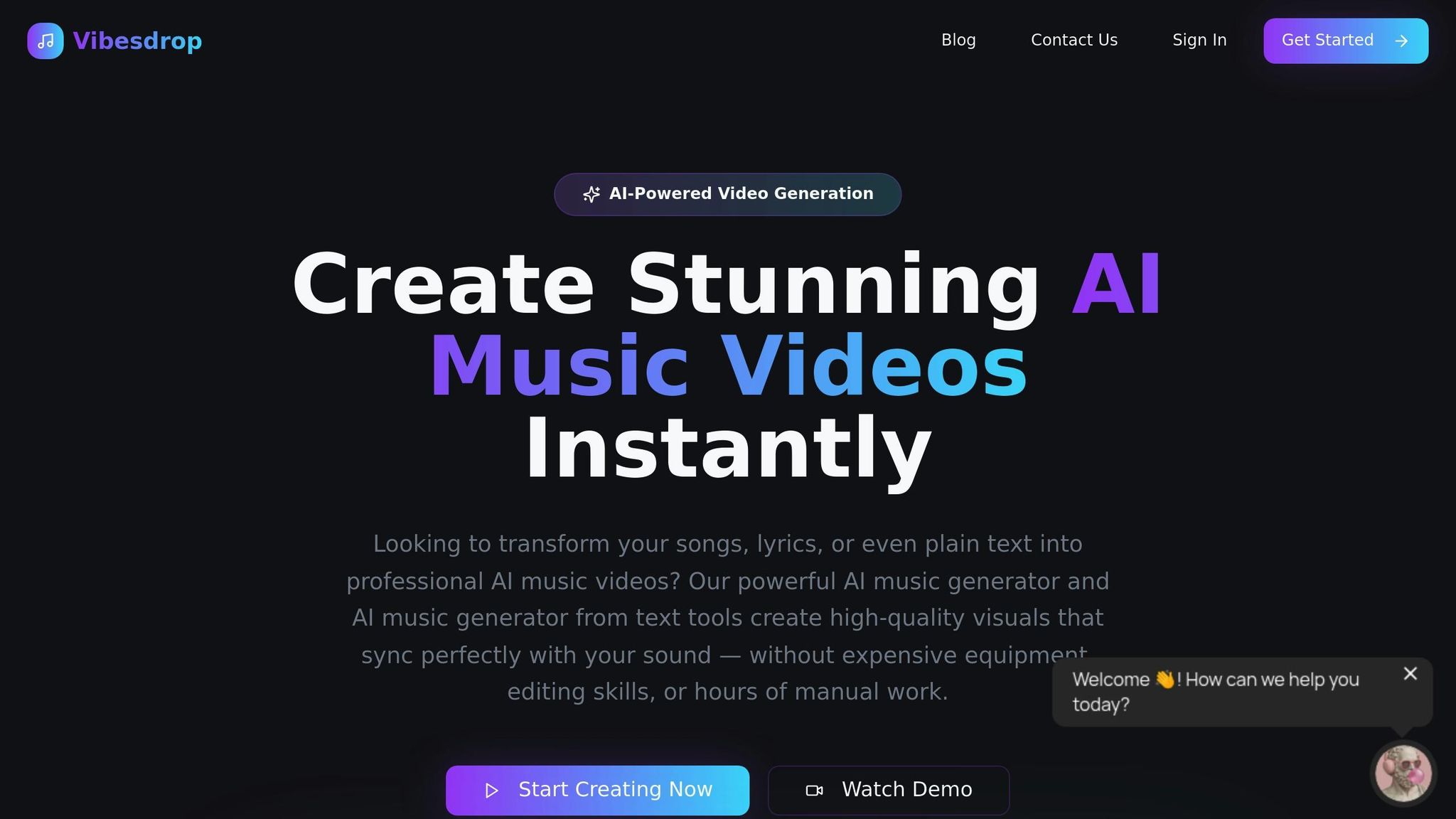
With your visual assets ready, it's time to use Vibedrop's intuitive design tools to turn your ideas into a polished Spotify Canvas. Vibedrop makes it easy to create eye-catching visuals that complement your music.
Uploading Your Music to Vibedrop
Start by logging into Vibedrop and heading to the upload section. The platform supports popular audio formats like MP3, WAV, and FLAC. Upload your finalized, mastered track to align with your Spotify release. Working on an album or EP? You can upload multiple tracks to ensure your visuals maintain a consistent theme across all your releases.
Customizing Your Canvas Design
After uploading your track, simply drag and drop your visual assets into the design workspace. Vibedrop automatically adjusts your visuals to the required 9:16 vertical format for Spotify Canvas. You can tweak the design by repositioning elements, changing colors, or adding effects to align with your brand's aesthetic. Use the preview feature to ensure your Canvas loops smoothly and looks cohesive.
Exporting Your Final Canvas
When you’re happy with your design, export your Canvas as an MP4 file in a 9:16 aspect ratio. Vibedrop ensures the file meets Spotify's specifications, including duration (3 to 8 seconds), file size, and resolution. Once exported, your Canvas is ready to upload to Spotify for Artists - no additional formatting needed.
sbb-itb-add310e
Uploading Your Canvas to Spotify
Once you've exported your MP4 file from Vibedrop, you're ready to upload it to Spotify. The process is simple, but paying attention to the technical details ensures your Canvas looks great on all devices.
How to Upload Canvas via Spotify for Artists
After finalizing your Canvas, log in to your Spotify for Artists account using either the web portal or the mobile app. Head to the Music section and find the track you want to enhance with a Canvas. Open the track's details and click on "Add Canvas".
Upload your MP4 file, and Spotify will automatically check that it meets their specifications. Once uploaded, preview your Canvas to confirm it loops smoothly and displays correctly. When everything looks good, hit "Save" to publish it.
Your Canvas will usually appear on Spotify within a few hours, though it may take up to 24 hours during busy periods. Once live, the visual will play automatically when listeners stream your track on mobile or desktop.
Canvas Upload Requirements and Quality Tips
Spotify supports MP4 and JPG/JPEG formats for Canvas uploads. The minimum resolution is 720 x 1,280 pixels, but for the best results, aim for 1,080 x 1,920 pixels. Render your video at 15Mbps for 1080p to retain sharpness after compression. To prevent cropping on different devices, keep key visual elements within the central "safe zone" of the 9:16 frame.
Stick to Spotify's content guidelines, avoiding audio elements and overly aggressive visuals like rapid cuts or flashing effects that could overwhelm viewers. Once your Canvas meets these standards, you can update it anytime to keep your profile fresh.
Updating Your Canvas
Spotify allows you to replace your Canvas whenever you like, making it easy to keep your visuals current. Log back into Spotify for Artists and follow the same steps to upload a new Canvas.
High-quality visuals are essential, and regularly updating your Canvas can help reinforce your brand's activity and creativity. Consider aligning your updates with seasonal events, tour announcements, or new artistic directions. Since replacing your Canvas deletes the previous version, save backups of any designs you'd like to reuse in the future. Frequent updates also signal engagement to Spotify's algorithm, potentially boosting your visibility.
Canvas Design Best Practices
Spotify Canvas gives you three loop styles to work with, each bringing a unique vibe to your 8-second video.
Choosing the Right Loop Style
- Continuous Loop: The video flows smoothly, with no noticeable break between the end and the beginning. Perfect for creating a seamless, hypnotic effect.
- Hard Cut Loop: This style has clear start and end points, giving your visuals a punchy, rhythmic feel.
- Rebound Loop: The video plays forward and then reverses, creating an engaging back-and-forth motion.
To make your Canvas stand out, align the loop style with your track's tempo and mood. These three options set the stage for experimenting and fine-tuning your visuals.
Conclusion
Creating a Spotify Canvas is a simple way to bring your music to life with engaging 8-second visual loops. These loops not only grab attention but also help deepen the connection between listeners and your tracks. The process begins by setting up your Spotify for Artists account and gathering the right visual assets. From there, Vibedrop's AI-powered tools make it easy to design and customize a Canvas that reflects your music's unique mood and energy.
Key Takeaways
Start by setting up your Spotify for Artists account and collecting high-quality visuals. Upload your music to Vibedrop, where AI analyzes your track to generate visuals that match its vibe. Customize elements like colors, effects, and timing to ensure the Canvas aligns with your artistic vision. Before uploading through Spotify for Artists, double-check that your file meets all technical specifications. Stick to Spotify's content guidelines and choose a loop style that enhances your music's rhythm and mood.
Jump Into Canvas Creation
Once you've completed the prep work, you're ready to create a Canvas that amplifies your music's impact. Vibedrop's AI tools take care of the technical side, allowing you to focus entirely on the creative process. Features like instant visual generation, smart music analysis, and multi-platform functionality make it easier than ever to design a compelling Canvas.
If you're among the first 100 users, you can enjoy free launch access to experiment with Vibedrop's full suite of tools. This includes AI-powered music analysis, visual creation features, and access to a private Discord community where you can exchange ideas with other creators.
Try Vibedrop on a single track to see how an 8-second loop can make a big difference. It’s just enough time to leave a memorable impression and turn occasional listeners into loyal fans.
FAQs
How do I create a seamless and engaging Spotify Canvas video for my music?
When crafting a Spotify Canvas video, aim for visuals that flow effortlessly, looping without any distracting breaks or jarring transitions. Keep the video within the 8-second limit, and align the imagery with the mood and style of your music to leave a lasting impression on your audience.
Choose high-quality visuals and stick to Spotify's recommended file formats to prevent playback issues like lag or stuttering. These small but crucial details can elevate your music's atmosphere and offer listeners a more engaging and immersive experience.
What are the requirements and tips for creating an engaging Spotify Canvas?
To craft an eye-catching Spotify Canvas, keep your video between 3 to 8 seconds long, with a vertical 9:16 aspect ratio and a minimum resolution of 720 pixels in height. Stick to MP4 or JPG file formats for smooth compatibility.
For optimal impact, go for bold colors, fluid transitions, and visuals that match the vibe of your song. Steer clear of rapid cuts, flashing graphics, or anything overly distracting. The idea is to create a seamless, looping visual that enhances the listener's experience while staying true to your artistic style.
What are the benefits of setting up a Spotify for Artists account besides uploading Canvas videos?
Creating a Spotify for Artists account offers musicians much more than just the ability to upload Canvas videos. It provides access to audience insights and analytics, allowing artists to dive into listener demographics, streaming patterns, and engagement levels. This kind of data can play a key role in shaping marketing strategies and building stronger connections with fans.
Beyond analytics, artists can personalize their profiles to showcase their brand, highlight their music, and even sell merchandise directly through their Spotify page. These features not only make fan interactions more engaging but also create new ways to generate income. By using these tools, musicians can increase their visibility and take important steps toward expanding their reach on Spotify.